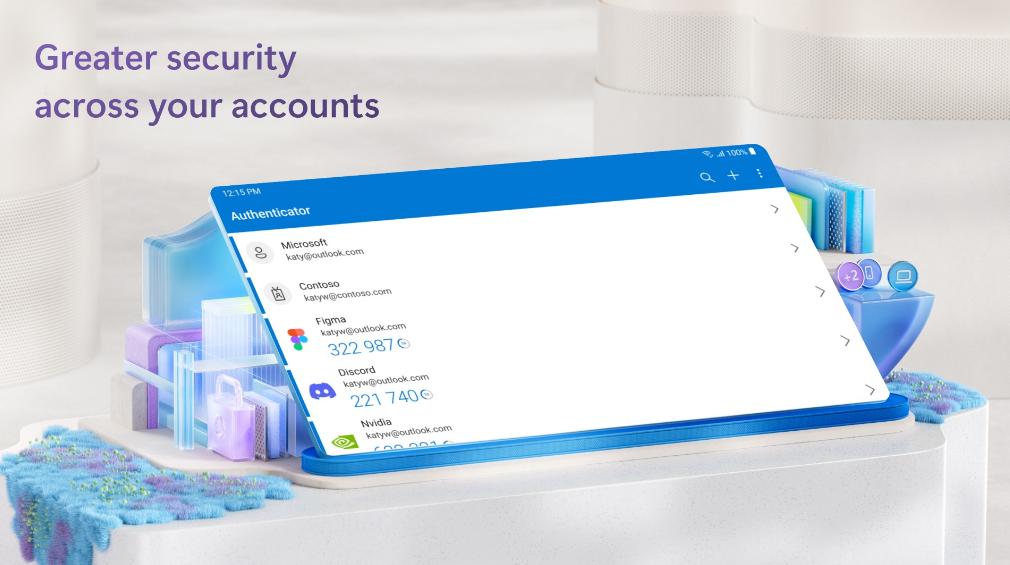
In an increasingly digital world, safeguarding your online accounts is paramount. Microsoft Authenticator provides a robust solution, offering a secure and convenient way to verify your identity and protect your data. This article serves as a comprehensive guide, walking you through the process of logging in with Microsoft Authenticator, exploring its features, and addressing common queries.
Understanding Microsoft Authenticator
Microsoft Authenticator is a free multi-factor authentication (MFA) app that adds an extra layer of security to your accounts. Instead of relying solely on a password, it requires a second form of verification, such as a code generated by the app or a notification approval. This makes it significantly harder for unauthorized individuals to access your accounts visit website aka.ms/authapp, even if they have your password.
Setting up Microsoft Authenticator
Before you can log in using the app, you need to set it up:
- Download and Install:Download the Microsoft Authenticator app from your device’s app store (available for iOS and Android).
- Add Your Account:
- Open the app and tap “Add account.”
- Choose the type of account you want to add (personal, work, or school).
- Follow the on-screen instructions, which usually involve scanning a QR code displayed on the account provider’s website aka.ms/linkphoneqr.
- Enable Two-Factor Authentication:For each account you add, ensure two-factor authentication is enabled in the account’s security settings.
Logging in with Microsoft Authenticator
Once set up, logging in with Microsoft Authenticator is straightforward:
- Initiate Login:Go to the website or app where you want to log in and enter your username and password.
- Verification Prompt:You’ll be prompted to verify your identity through the Authenticator app. There are two common methods:
- Verification Code:The app generates a time-based, one-time password (OTP) that you enter on the login screen.
- Notification Approval:You’ll receive a notification on your phone, which you can approve with a tap to confirm your identity.
- Complete Login:After successful verification, you’ll be logged in to your account.
Benefits of Using Microsoft Authenticator
- Enhanced Security:MFA significantly reduces the risk of unauthorized access, even if your password is compromised.
- Convenience:The app offers a user-friendly interface and quick verification methods.
- Passwordless Login:For some accounts, you can even go passwordless and rely solely on the app for authentication.
- Multiple Account Support:Manage authentication for various accounts, including Microsoft services, Google, Facebook, and more, all in one place.
- Offline Access:Generate verification codes even without an internet connection for time-based OTPs.
Troubleshooting and FAQs
- “I’m not receiving notifications.”
- Ensure notifications are enabled for the Authenticator app in your phone’s settings.
- Check your internet connection.
- Make sure the app is running in the background.
- “My verification codes aren’t working.”
- Verify that the time on your phone is accurate.
- If you’re using a time-based OTP, ensure you enter the code before it expires.
- Try removing and re-adding the account in the app.
- “Can I use Microsoft Authenticator on multiple devices?”
- Yes, you can install and set up the app on multiple devices. However, only one device can be active for push notifications for a specific account at a time.
- “What if I lose my phone?”
- If you lose your phone, you’ll need to use recovery methods provided by your account providers to regain access to your accounts website Account.live.com/acsr.Make sure to set up backup options, such as recovery codes or alternative authentication methods, in advance.
Beyond the Basics
Microsoft Authenticator offers additional features:
- App Lock:Add an extra layer of security to the Authenticator app itself with a PIN or biometric lock.
- Cloud Backup:Back up your account credentials to the cloud for easy recovery if you switch devices.
- Authenticator for Apple Watch:Get verification prompts directly on your Apple Watch.
Conclusion
Microsoft Authenticator is a powerful tool that empowers you to take control of your online security. By implementing MFA, you significantly reduce the risk of account compromise and protect your valuable information. With its user-friendly interface, convenient features, and robust security, Microsoft Authenticator is an essential app for anyone looking to enhance their online safety.